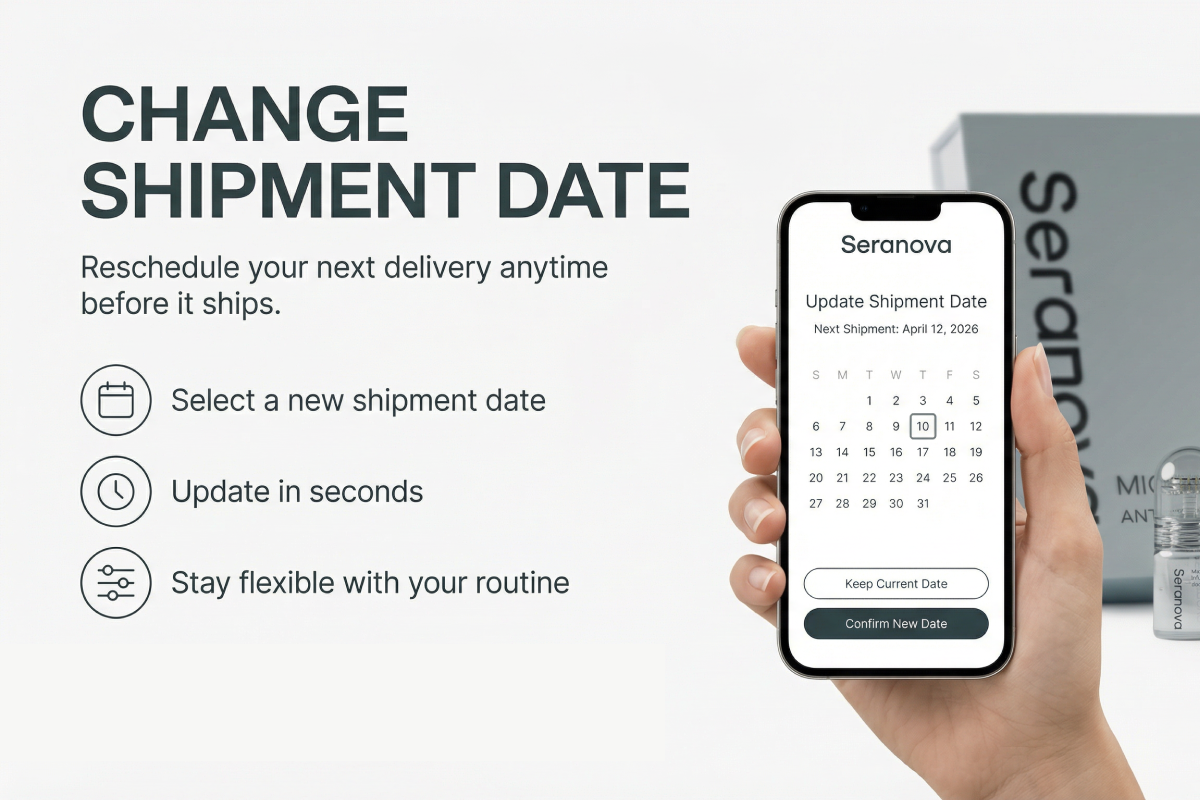
📅 Change Next Shipment DateUpdated 15 days ago
Planning ahead?
Move up or push back your next shipment with just a few clicks!
⚠ Important: We currently have two different subscription portals, depending on where you originally purchased your Seranova products.
Social Media Offers (Facebook, Instagram, etc.)
If you purchased through a special offer or ad on social media, your subscription is managed through our Old Subscription Portal.Main Website Purchases
If you purchased directly from our website (not through a social media ad), your subscription is managed through our New Subscription Portal.
This article covers how to manage your subscription across both of our customer portals. We’ll show you the steps for the new portal first, then walk you through the old portal. Please read each section carefully so you’re following the right instructions for your account.
Step 1. Navigate to the bottom of our website and look for the option called "Manage my subscription"
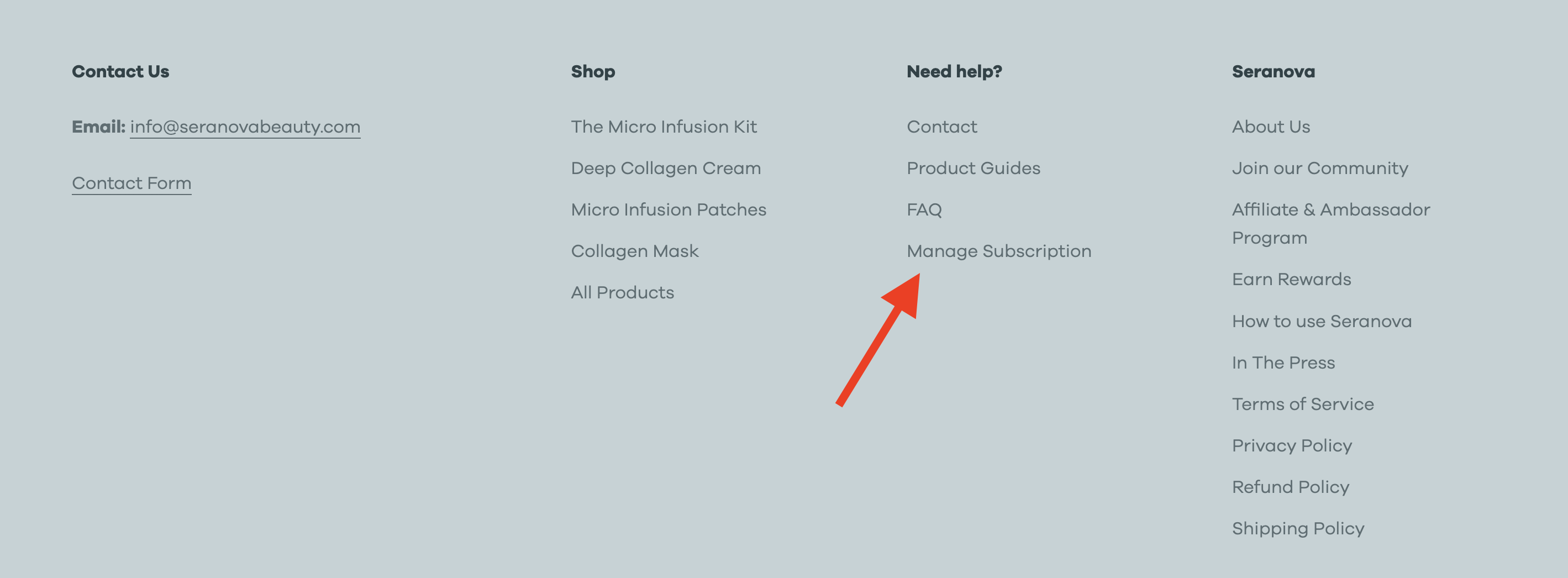
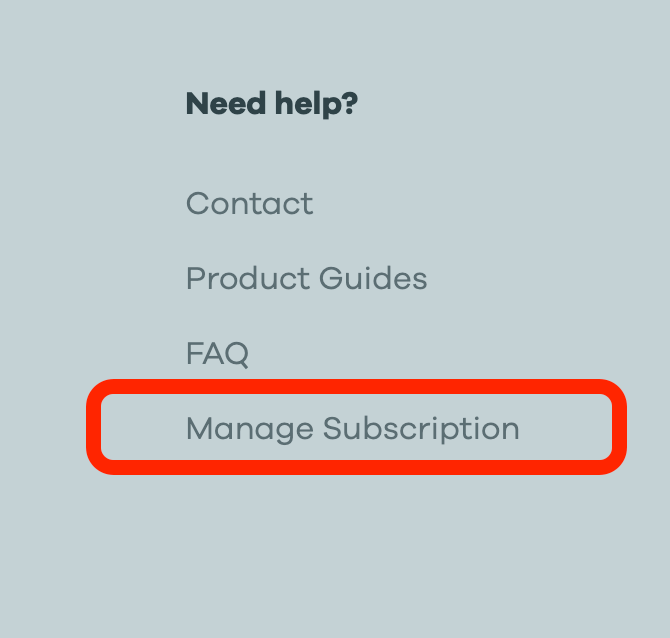
Step 2. Alternatively, click on the following link: Manage my Subscription. We will redirect you to our subscription page.
Step 3. Enter the email associated with your Seranova Purchase, and a 1 time login link will be sent to your email address, follow the instructions in that email. Please make sure to check on your Spam folder!
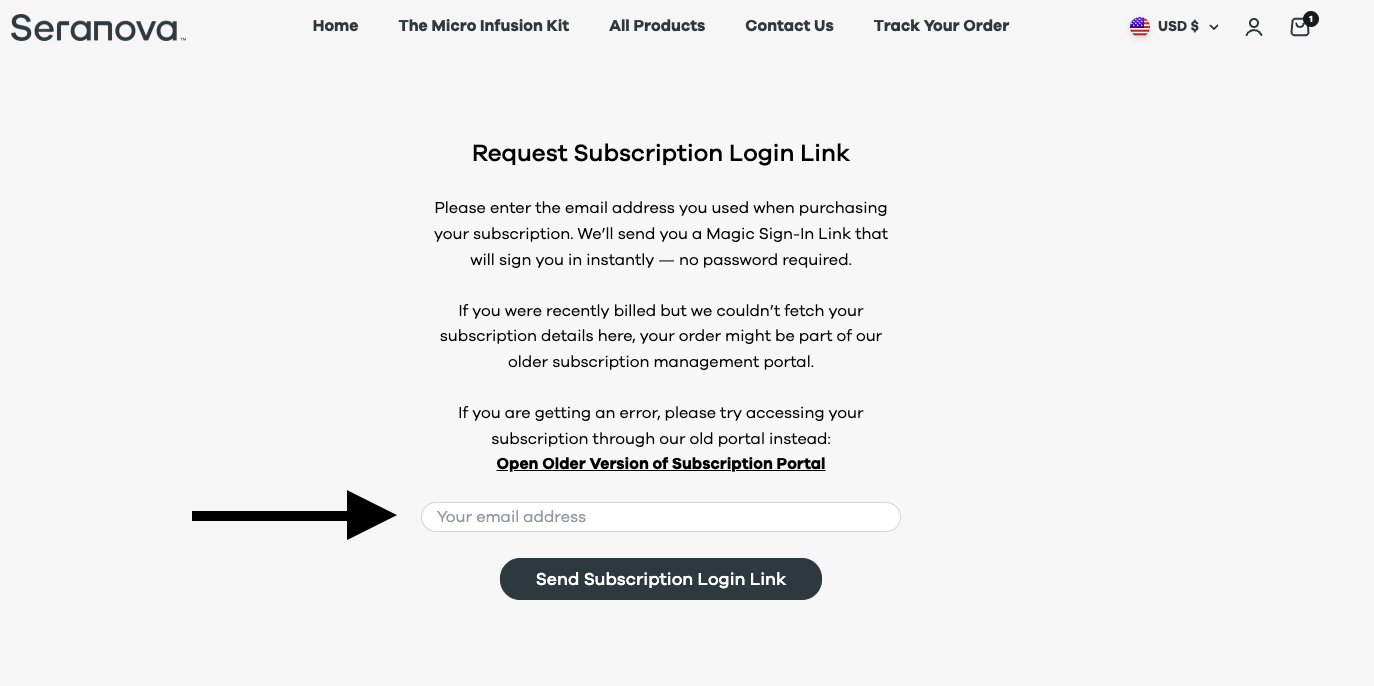
Step 3.2 If you get an error message saying we were unable to fetch your subscription details, please try using our Old Subscription Portal, enter your email again, your subscription details will be there.
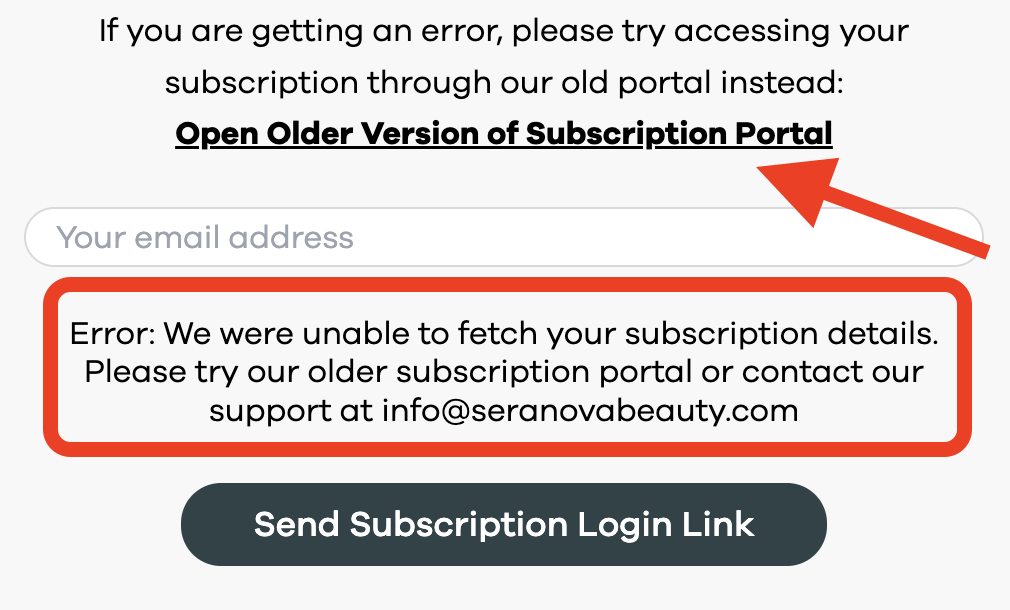
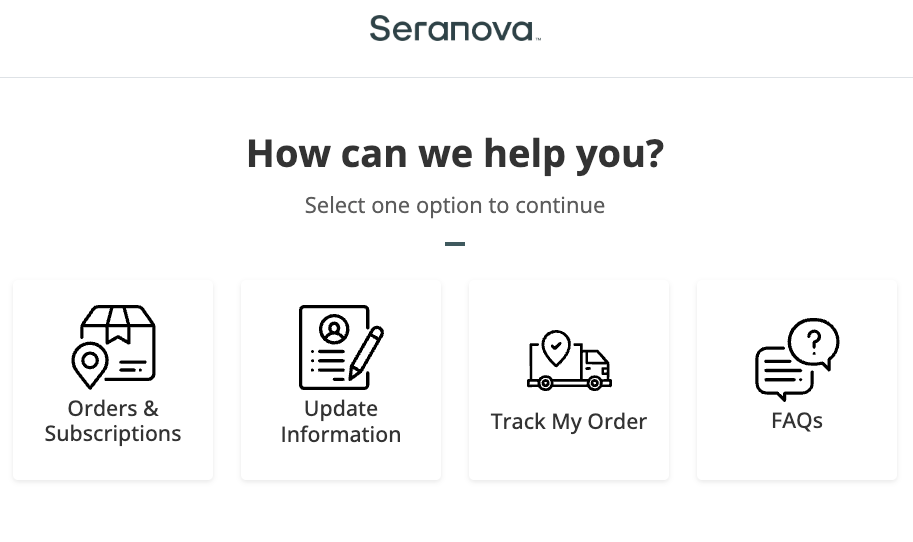
Step 4 - You will be redirected to our Old Subscription Portal, please select the option that best fits your needs.
*** Below you will find instructions on how to modify your subscription in both of our customer portals.***
New Subscription Portal -
Step 1. Once you log in, you will be redirected to our Subscription Menu.
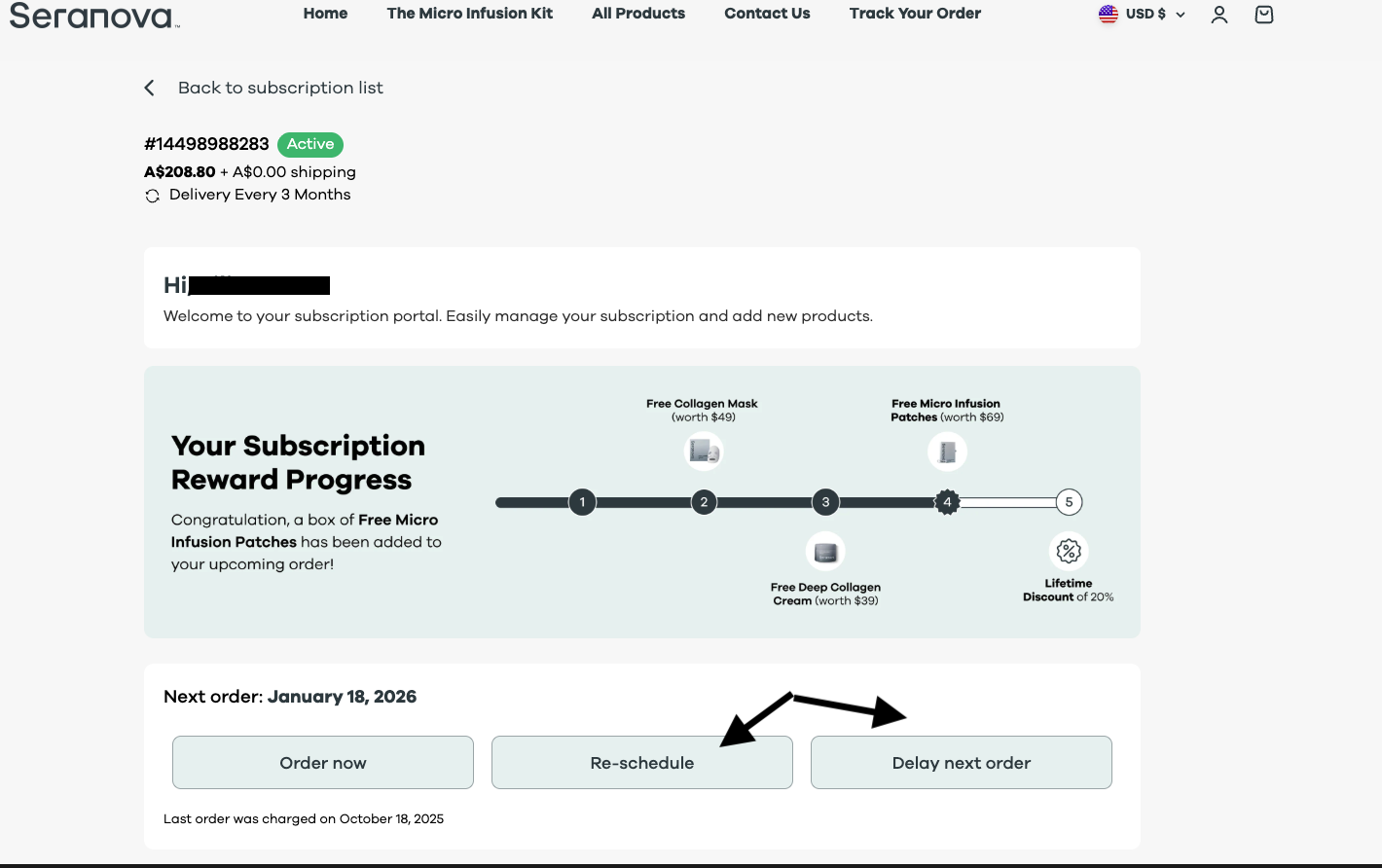
Step 2. You can either; Delay your next order or Reschedule it. Simply select the option that better first your needs.
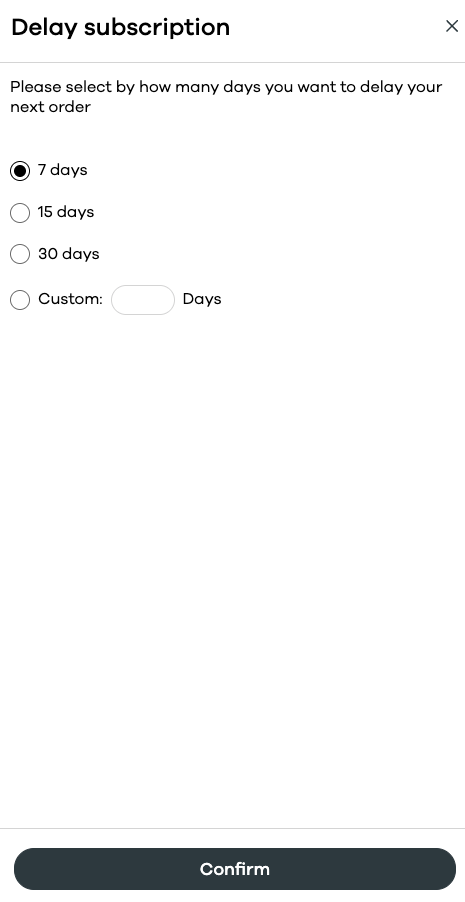
Step 3. Delaying your order; click on Delay next order and then select how long you will like to delay it for and click "Confirm"
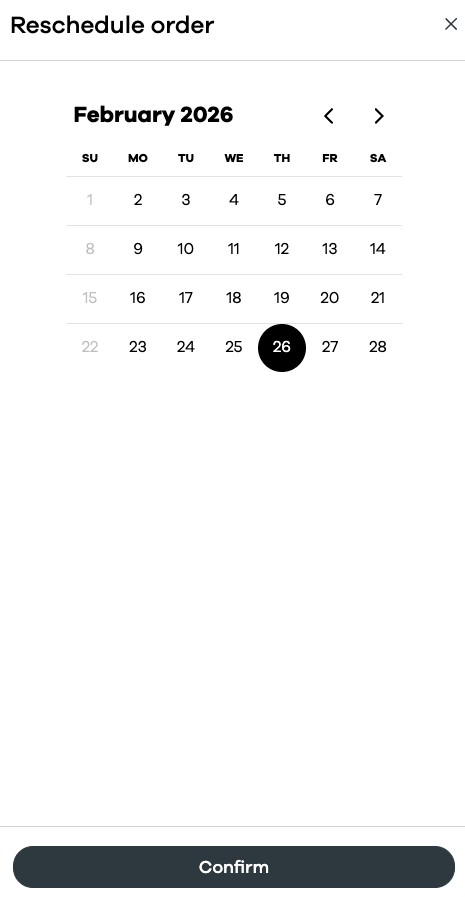
Step 4: Reschedule your order; Click on "Reschedule" and select the date that better fits your needs, then click "Confirm"
Old Subscription Portal -
Step 1. Once you log in - you will be redirected to our Options Menu.
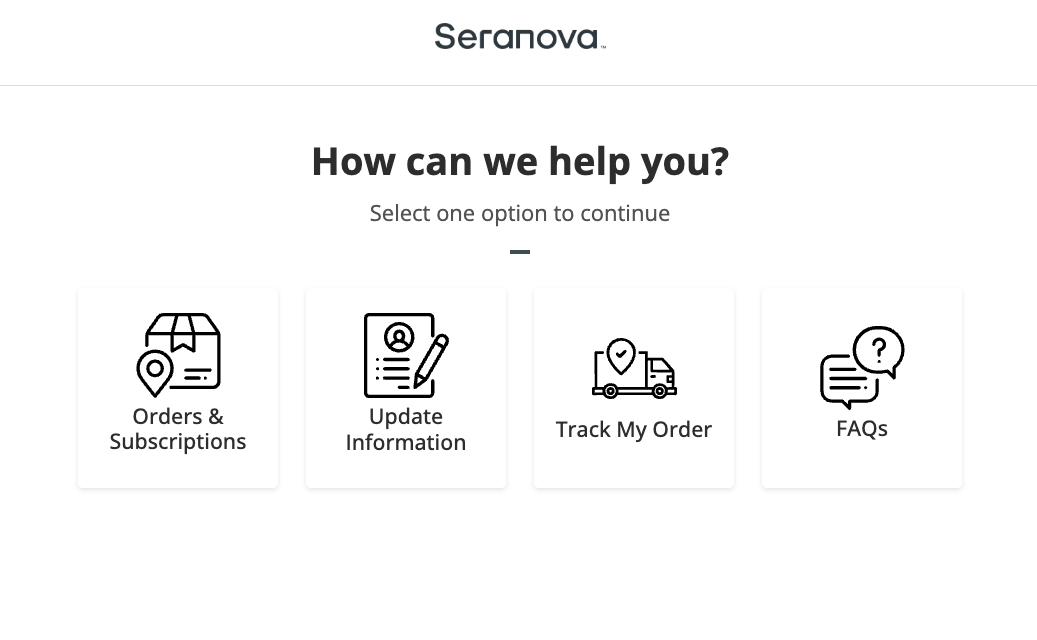
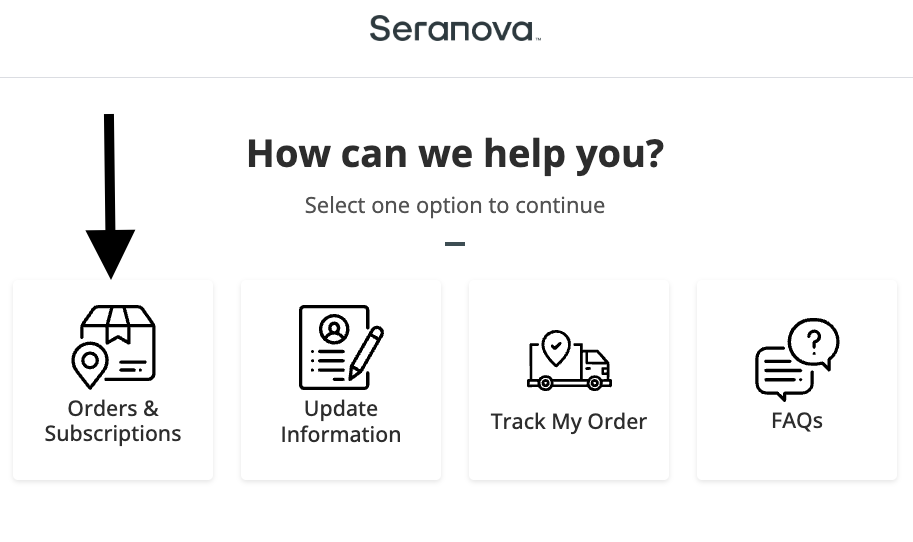
Step 2. Select the option "Orders & Subscriptions"
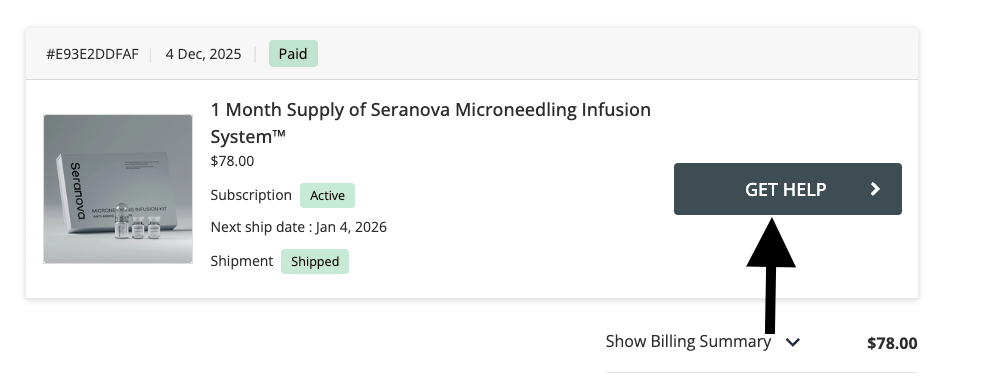
Step 3: Navigate to the subscription you wish to modify and click "Get Help"
Step 4: Click on "Manage Subscription"
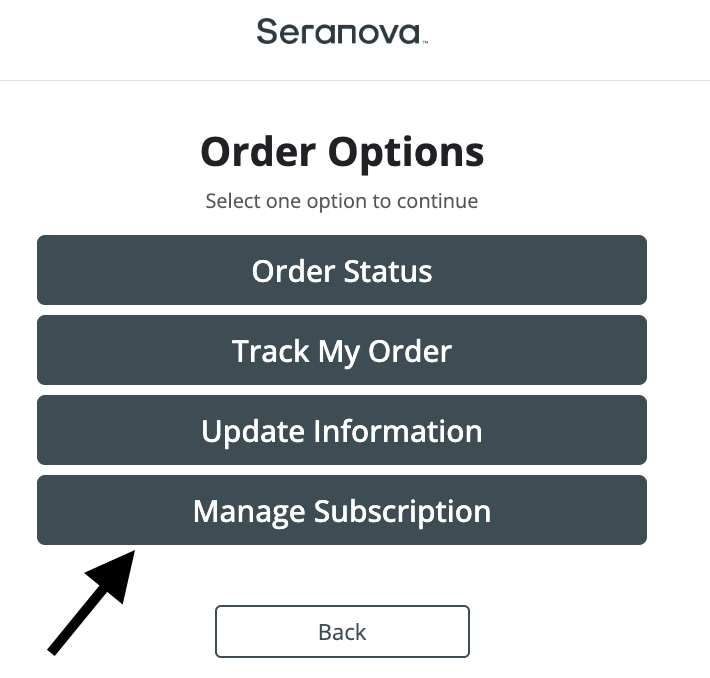
Step 5. Click on "Skip Shipment" or "Pause Subscription"
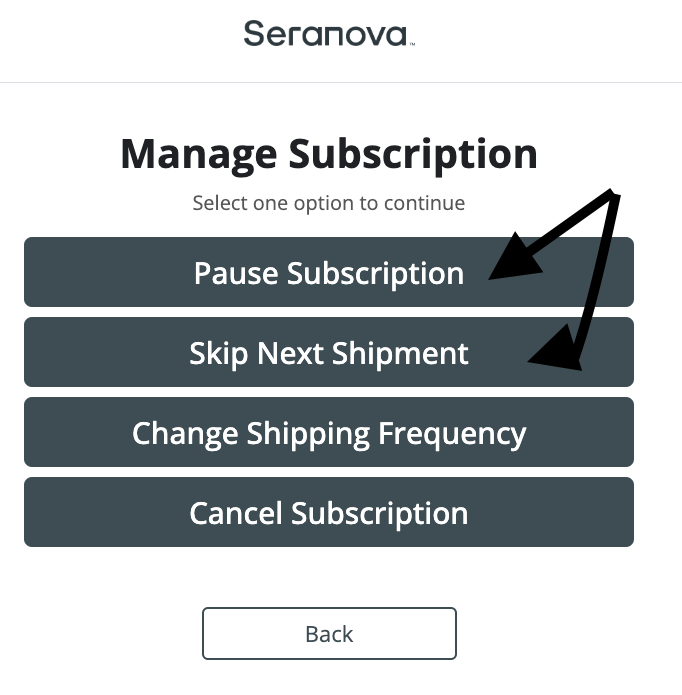
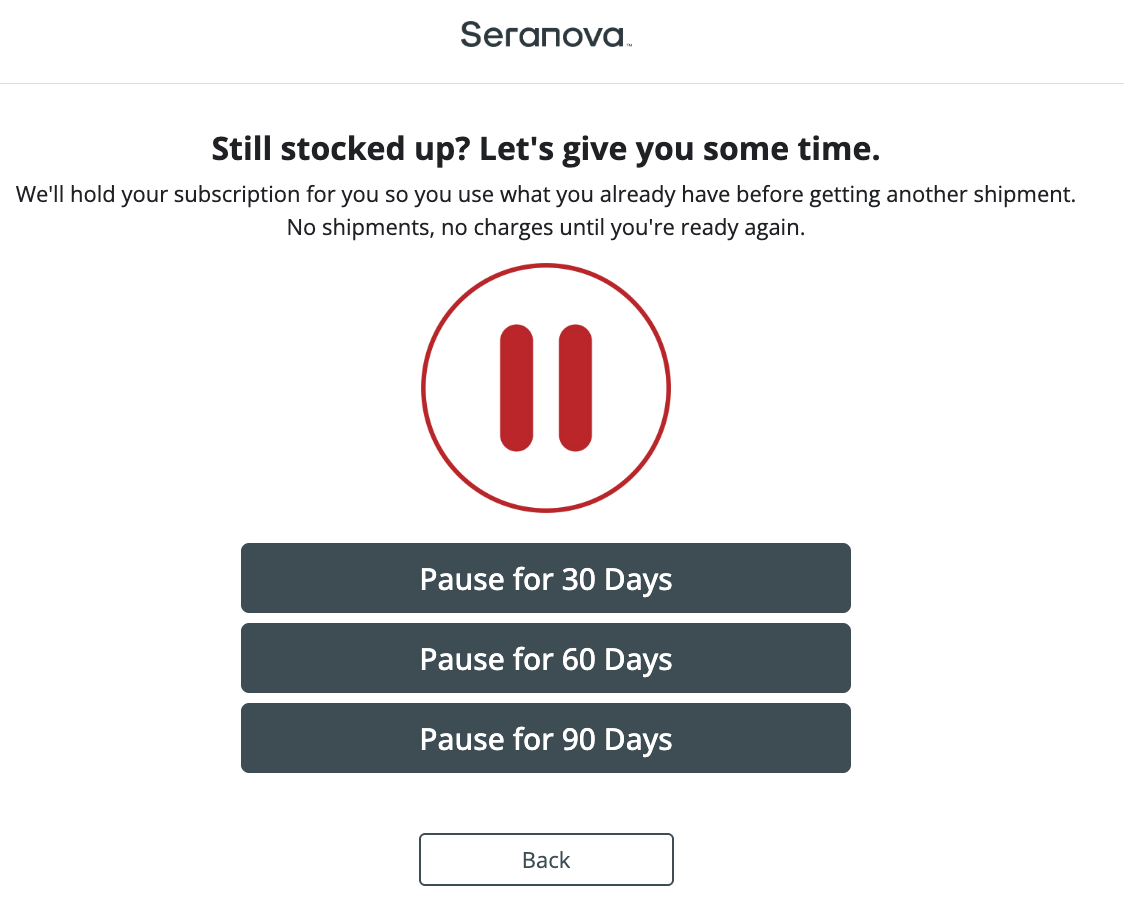
Step 6: Select the option that best fits your needs.
If you still have any questions or require additional help please reach out to us at [email protected]